
How AI Models Automate CRM Workflows

AI can cut CRM busywork fast when I use it for one narrow job, connect it to clear CRM actions, and add handoff rules from day one.
Here’s the short version: I let the model read messages, sort intent, pull key details, and draft summaries. Then I let the CRM do the database work: create records, update fields, assign owners, log notes, and send alerts. That split keeps the setup simple and lowers the chance of bad write-backs.
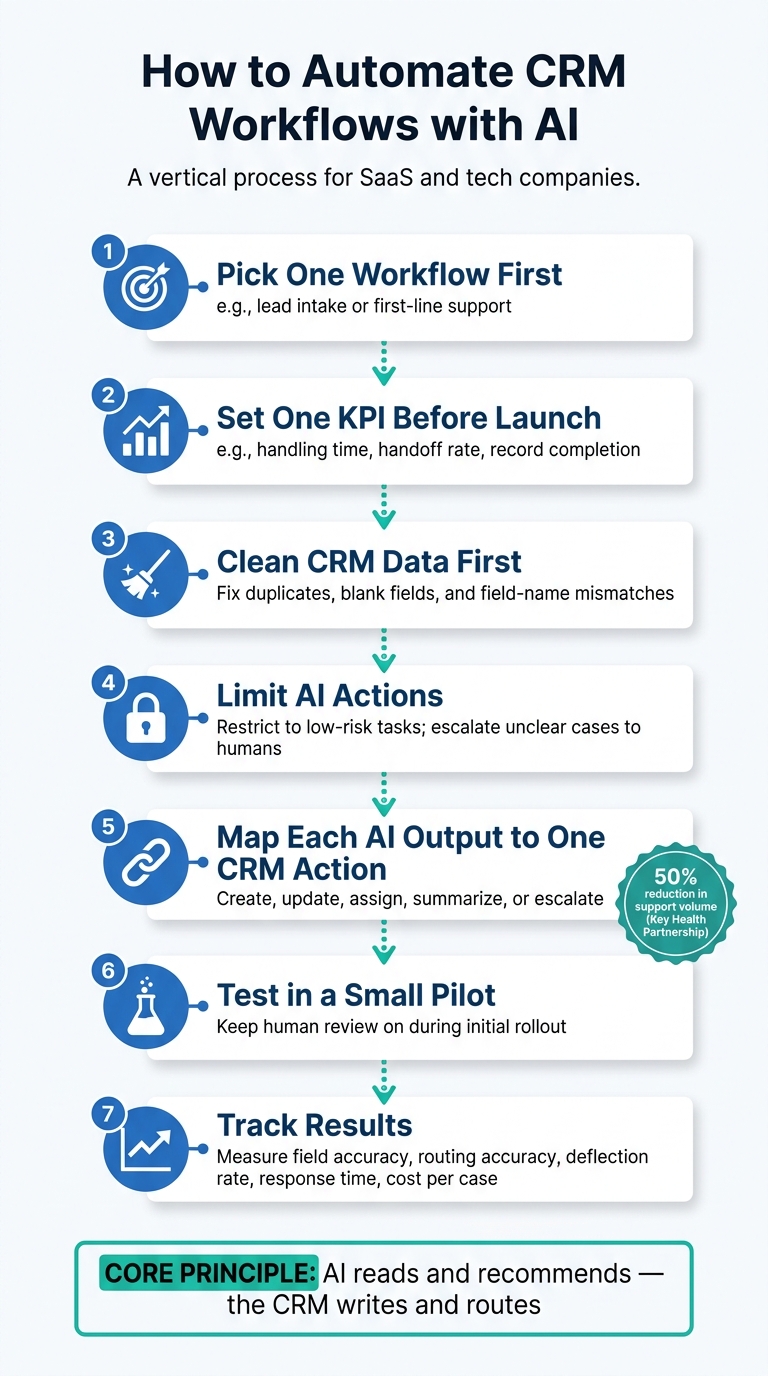
If I were setting this up today, I’d keep it to these steps:
- Pick one workflow first like lead intake or AI helpdesk support questions
- Set one KPI before launch such as handling time, handoff rate, or record completion rate
- Clean CRM data first by fixing duplicates, blank fields, and field-name issues
- Limit AI actions to low-risk tasks, and send unclear cases to a person
- Map each model output to one CRM action like create, update, assign, summarize, or escalate
- Test in a small pilot with human review still on
- Track results with field accuracy, routing accuracy, deflection rate, response time, and cost per case
A few numbers in the article stand out. One cited case says AI cut support volume for insurance policy queries by at least 50%. There’s also a strong reminder that results should be measured against a pre-launch baseline, not guessed after rollout.
The big idea is simple: AI reads and recommends; the CRM writes and routes. When I start small, set approval rules, and watch the data, CRM automation becomes much easier to control and improve.
How to Automate CRM Workflows with AI: 7-Step Setup Guide
Automate CRM Enrichment For Demo Requests (AI workflow)
sbb-itb-e1b05dc
Assess CRM workflow candidates
Not every workflow should be automated first. Start with the one that's repetitive, measurable, and low risk. Once the goal is clear, the next move is picking the best workflow to automate before anything else.
Choose one high-impact workflow first
Start with a high-volume workflow like lead capture or first-line customer questions. Narrow, predictable tasks work best at the start because they map cleanly to specific CRM updates.
Keep the workflow tight. That gives the model a limited set of inputs and actions, which makes it easier to control.
After that, spell out which cases can stay fully automated and which ones should go to a person.
Separate good AI use cases from poor ones
A simple test helps here: does the workflow follow a repeatable pattern, or does it need human judgment every time?
| Workflow Type | Good AI Candidate? | Why |
|---|---|---|
| Answering common policy or product questions that can trigger a CRM note or handoff | ✅ Yes | Repeatable and based on existing company data |
| Capturing prospect contact details and updating CRM fields | ✅ Yes | Structured, low-risk, and measurable |
| High-intent sales conversations | ⚠️ Partial | AI can flag; a human should take over |
| Complex queries or strategic issues | ❌ No | Require human judgment |
If the model can't interpret a case with confidence, send it to a human and let the CRM log the outcome. For sensitive or irreversible actions, the AI should surface the case to a person instead of acting on it. Pass the full context to the agent so the customer doesn't have to repeat anything [1].
What makes that call? Data quality, system access, and approval rules.
Define the KPI before implementation
Pick one metric before you build. Without a baseline, there's no clean way to tell whether the automation is doing its job.
Common starting KPIs include:
- Average handling time
- Lead response time
- Human handoff rate
- Percentage of CRM records completed without manual entry
For support-heavy workflows, it also helps to track the share of queries resolved without human involvement.
Set the baseline before launch. Then measure that same KPI again after deployment.
With a target metric in place, the next step is getting the data and guardrails ready so the automation stays safe.
Prepare data, access, and guardrails
Once you’ve set your KPI, the next step is the CRM foundation: clean data, clear access rules, and firm escalation limits. This is the control layer that helps keep automation safe before it starts writing back to the CRM.
Clean the CRM data model first
Start by auditing contacts, deals, and lifecycle stages for duplicates, mismatched field names, and missing values before you connect the model.
Set naming rules and required fields first. If fields are blank or inconsistent, the output can drift fast. Garbage in, garbage out - same old story. Fix those issues before automation goes live.
Keep model inputs limited to approved internal sources so CRM updates stay factual and on-brand [2]. A centralized contact history also gives the AI context from one interaction to the next, so it doesn’t act like every conversation is starting from scratch.
Once the data is clean, decide who can approve each type of CRM change.
Set permissions and approval rules
Be clear about which CRM actions AI can handle on its own and which ones need a person to step in.
- Capture lead name and contact details: AI can act directly.
- Update sensitive CRM fields or process payments: human approval required.
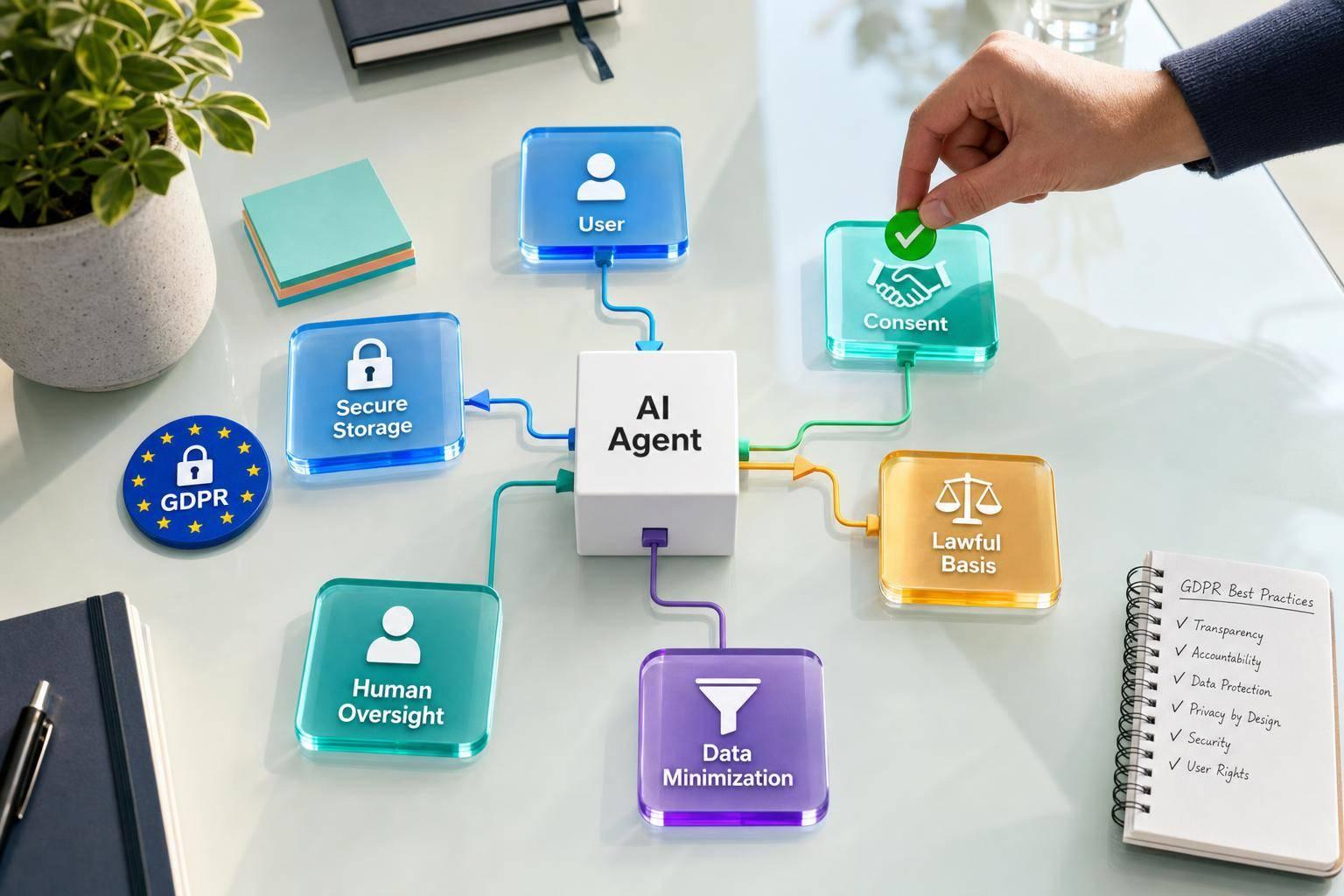
You’ll also want to decide which staff members can view certain customer conversations. And any AI-led conversation should be stored in a secure audit log for auditing and compliance [1].
Define confidence thresholds and human handoff
Even a well-trained model will run into messy cases: missing data, unclear intent, or requests that sit outside its job. That’s normal. Set a confidence threshold so the AI stops and hands the case to a human when it’s not sure enough.
Track the reason for each escalation so you can adjust the threshold over time. For sensitive actions - especially anything tied to payments or sensitive CRM fields - require identity verification before the AI moves forward.
Once these controls are in place, map each AI output to a specific CRM action.
Connect AI models to CRM actions
Next, tie each AI output to a clear CRM action.
Map inputs, outputs, and business actions
Most AI-to-CRM workflows follow the same flow: capture an event, send the right data to the model, check the output, then write the result to the CRM.
Here’s how that looks across five common CRM actions:
| CRM Action | What the AI Receives | What Gets Written Back |
|---|---|---|
| Create Record | Name, email, and phone from chat | New contact saved automatically |
| Update Field | Customer intent or status such as "paid" | CRM field updated in real time |
| Assign Owner | Query type or department signal | Conversation routed to the right team |
| Summarize | Full conversation thread | Concise internal summary for handoff |
| Escalate | Low confidence score or complex request | Human handoff triggered with full context passed along |
Structured outputs fit neatly into CRM fields and follow-up actions.
Once each output has a matching CRM action, the next move is simple: pick the easiest way to connect the systems.
Choose the implementation path
Use APIs and webhooks when you need real-time updates across systems. Use native CRM automation when the job stays inside the CRM, like updating a field or assigning a task.
| Implementation Path | Best Fit For |
|---|---|
| APIs and webhooks | Real-time actions that push updates to a CRM or other external system |
| Native CRM automation | Simple internal field updates and basic task assignments |
With the connection method set, the last step is to test the workflow in a pilot.
Use AI agents for support-led CRM updates
Support chats are a smart place to start because they already hold the details needed for CRM updates and handoffs.
This is where the split above becomes practical. AI extracts and classifies the data, and the CRM handles the record update or routes the case to the right team.
Converso's AI agents can capture lead details from webchat, WhatsApp, and SMS, write them into CRM records, and hand off unresolved cases with full conversation history.
After the action map is in place, run a pilot on a small set of real cases.
Test, monitor, and refine automation
Run a pilot before full deployment
After you’ve mapped your CRM actions, start with a small pilot instead of rolling everything out at once. Pick one workflow and test it with one team or business unit first. During the pilot, use only approved company sources.
Human review should stay on. Let the AI take care of routine triage and common questions, but send complex or high-stakes cases to a human agent automatically. And when that handoff happens, pass along the full conversation history so the customer doesn’t have to repeat themselves. That small detail can save a lot of friction.
Archive every pilot conversation in one central audit log. Track misreads, wrong-field updates, and misroutes before you scale. If something goes wrong in a pilot, that’s useful. It’s much better to catch those issues early than deal with them later across the whole team.
Track quality, speed, and cost impact
Once the pilot is live, measure the same KPI you set earlier, along with accuracy and escalation rates. You should also track cost per resolution or cost per handoff. Those numbers help you see whether the AI-interprets, CRM-acts split is doing its job across quality, speed, and cost.
| Metric | Purpose |
|---|---|
| Field accuracy rate | How often the AI updates CRM fields correctly |
| Routing accuracy | How often conversations reach the right team or agent |
| Deflection rate | The percentage of queries resolved without human intervention |
| Escalation rate | How often the AI hands off to a human |
| Response time | How quickly customers get a first response or resolution |
| Cost per resolution or handoff | Whether automation is reducing the cost of handling each case |
If the workflow supports sales, watch lead capture and conversion too. That gives you a clearer picture of whether the system is helping the pipeline, not just cutting support workload.
"Converso's AI agent has reduced the volume of insurance policy queries that the support team answer by at least 50%, through easy integration of our AI Agent with our sales support team." - Aaron Valente, Director, Key Health Partnership [1]
Conversation summaries can help you spot repeat problems. If the same intent keeps triggering the wrong route or causing a missed field update, adjust the prompt, routing logic, or confidence threshold before you expand the workflow.
Conclusion: Start small, add controls, then expand
Use pilot results to tighten prompts, routing, and thresholds before expanding. Start with one workflow, run it under review, and scale only when the data gets better.
FAQs
How do I choose the best CRM workflow to automate first?
Start with clear business goals. Then look for repetitive, high-volume tasks where automation can pay off fast, like lead capture, qualification, or routine customer inquiries.
Next, map your processes to find bottlenecks. Focus first on workflows that cut wasted time and free your team to spend more time on higher-value work.
What CRM tasks should AI handle on its own?
AI should handle routine CRM work that eats up a lot of human time, such as:
- qualifying and scoring leads
- creating or updating contact records
- logging activities and tracking interactions
- sending follow-up messages and keeping customer records up to date
It can also take care of back-office tasks like fetching plan details and processing refunds. That gives your team more time for the work that matters more: helping customers and building stronger relationships.
How can I measure whether CRM automation is working?
Set a baseline first, then track the same numbers over time. That gives you a clear way to see what’s working and where things start to slip.
Watch the core system metrics closely:
- API response times, with a target of under 500 ms
- Workflow success and failure rates
- Data sync completion times
- System health checks for API availability and data consistency
Then look at business impact too. That usually means tracking AI deflection rates, resolution times, and customer satisfaction (CSAT).
If you use Converso, its unified cross-channel view can make this a lot easier. You can use it to measure team productivity and check whether the customer experience stays consistent across channels.


.svg)
.svg)
.svg)
.svg)